

Accepting Payments – Overview
The Accept Payments feature enables merchants to receive funds from customers through financial institutions and digital channels. Payments are validated, credited, and recorded seamlessly, with real-time notifications sent to merchant accounts using a collection webhook.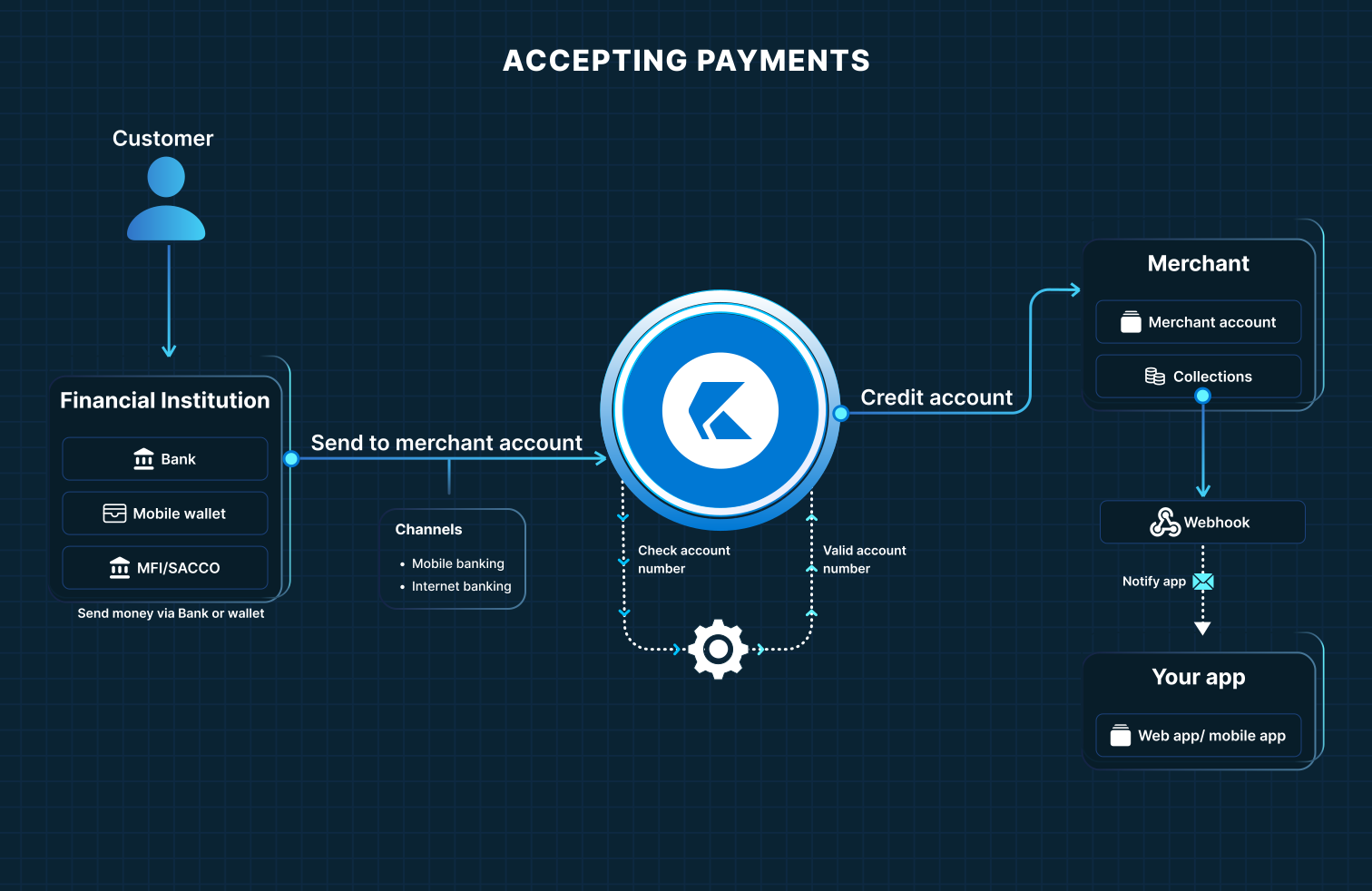
How Accepting Payments Works
1. Customer Initiates Payment
A customer sends money using their preferred digital platform, such as:- Internet banking or mobile banking
- Mobile wallets
- MFI or SACCO core banking platforms
Payments are initiated through supported channels, including mobile banking and internet banking.
2. Funds Sent to Merchant Account
The customer directs the payment to the merchant’s OneKhusa Merchant Account. During this step:- The merchant account number is validated
- Only valid merchant accounts are accepted for processing
- For any invalid transaction, an automatic reversal request is sent to the originating bank or mobile wallet
3. Payment Credited and Recorded
Once validated, the funds are credited to the merchant’s account and recorded as a collection transaction within the OneKhusa platform. All such transactions collectively form the merchant’s Collections.4. Real-Time Notification via Webhooks
After a successful credit:- OneKhusa triggers a collection webhook notification
- The merchant’s web or mobile application is instantly notified
- This enables real-time updates, reconciliation, and execution of business logic
How to Test Accepting Payments (Test mode)
In order to test accepting of payment while running in test mode (sandbox) you can be able to simulate a payment request directly from the merchant portal. A collection webhook will be required for the developer to process any incoming request after a simulation is initiate. To test accept payment do the following:1.1 Login with your OneKhusa Account
- Log in to OneKhusa Portal OneKhusa Portal
1.2 Navigate to Fake Data
- Go to Fake Data → Test Accept Payment Simulation
- Choose the merchant account to test payment
- Select Make Payment
- Specify the Topup amount and the Bank/MNO that the payment should originate from
- Select Topup Account to send the payment
1.3 Process payment via webhook
Once the payment is received a webhook is sent to the collection webhook that was subscribed to with the payload. From this you can add business logic on what happens after the payment is received. In Live Mode (production) upon KYC submission Fake Data option will not be available however, payments sent through customer channels will route to your registered collection webhook in the same manner as what happens in Test mode.What Merchants Can Do
- View your payment history – See all the payments you’ve received
- Track individual payments – Get details about specific transactions
- Monitor your income – Keep track of money coming into your account in real time
- Filter and search – Find specific payments or analyze your revenue